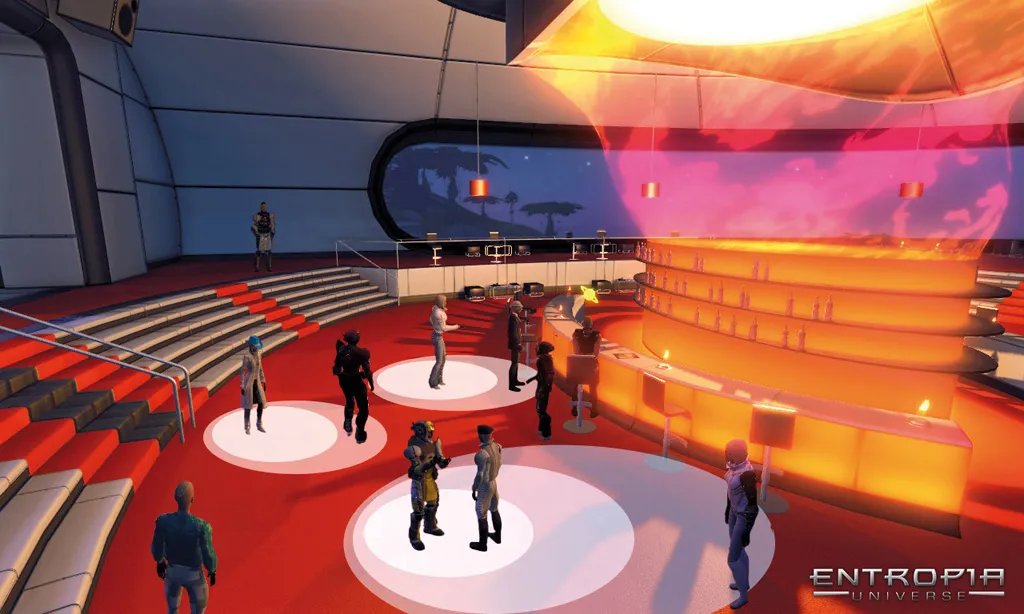
Interaction
In Entropia Universe, you can interact with other participants, items, estates, mobs and so on. When you place the cursor over another avatar or an item, you can view basic information of the avatar or item. You can select the avatar or item by single clicking with left mouse button.
Chatting with other participants is done through the Main Chat, Private Chat and Vocie Chat.
Context Menu and Action Interaction
You can interact with other avatars and various items to achieve different purposes. Available actions that you can choose between for the selected avatar or item can be found in several ways; two of them are described here.
Interaction using mouse
- Place the cursor on another avatar or item and single click with the right mouse button to see possible interaction options in the Context menu.
- Select desired interaction option.
Interaction using mouse and icon
- Select avatar or item (single click with left mouse button on avatar or item).
- Click on desired interaction icon. Either choose between those available on the Desktop or directly from the Action Library (opened with default key Y).
Main Chat
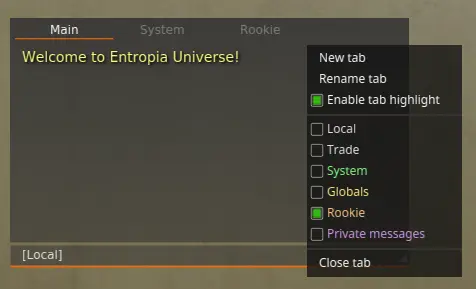
The Main Chat can be used to chat to participants visible on your Radar, or with others further away if you are active in certain groups (teams, societies, etc.). It is also used to present you with information and global news (local to the planet you are on). For example, you can see if someone got a high-value loot or how much you damaged a creature during hunting.
The Main Chat functionality is described on the Desktop page.
Private Chat
Use Private Chat when you wish to chat privately with only one participant:
- Right click on the avatar you wish to chat privately with.
- In the Context menu, choose Avatar, then Private Chat.
- If you get an affirmative response, the chat window is opened and you can chat.
Additionally, Private Chat is automatically opened during PvP trade.
Voice Chat
If you have a headset with a microphone you can use the Voice Chat system to talk to other participants.
Proximity Chat
Everyone in Entropia Universe has access to the proximity voice chat, that is, the Basic Voice Package. You can use it to speak and listen to other participants in your vicinity. This feature is disabled by default, but you can easily activate it:
- In the Main Chat UI, use the volume icon as a button to open the Options UI for Voice Chat settings.
- Select Enable Proximity Voice.
- Accept the changes and close the Options UI.
Voice Team
If you subscribe to the Premium Voice Package and/or the Premium Voice Team Package+ you can create a voice team with 6 or 12 team members respectively.
- Open the Team Settings UI (either right click to open the context menu and choose System and then Team or right click on an avatar and choose Avatar and then Team Invite).
- In the Team Settings UI, at the bottom to the left, select Voice Chat.
Subscription
You can modify your voice package subscriptions in the Communicator UI:
- Open the Communicator UI either through the Action Library (default key Y) or through your Friend List (click the headset icon).
- In the Update Options section, select desired service.
- Click Activate to confirm your change.
Note: If you upgrade your subscription you will pay the fee in beforehand, allowing free usage of the system for the coming 30-day period. If you downgrade a subscription you will still access the previous package for the rest of the 30-day period. - Click Close to close the UI.
Push to Talk
If you want to actively choose when your microphone is on, enable Push to Talk:
- Enable (or disable) Push to Talk in the Options for voice chat.
- Select Enable Push to Talk.
- Find the action Push to Talk in the Action Library (default key Y) and then you can choose to add it to the Desktop, as an icon, or bind it to a key on a keyboard set.
Note: To do this you need to first click on the Handling Keyboard Panel Icon.


